Digital Products
Part of Creator courses and workshops
Updating Educational Products After Subject Changes: A Guide
A course can become misleading when the tool, rule or method it teaches changes. Maintain a list of claims that may expire and tell learners when an update alters what they need to do.
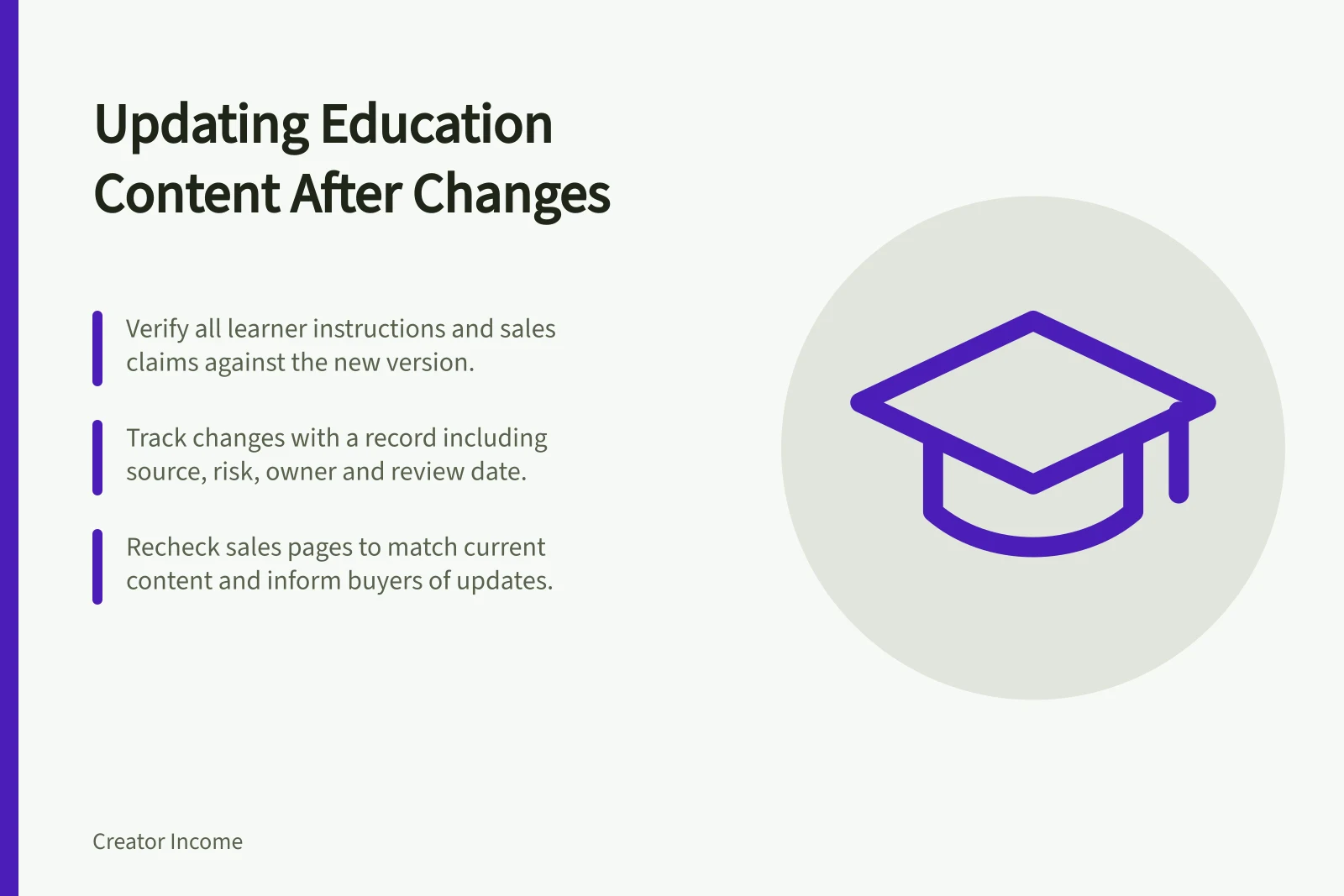
When a tool, rule or method changes, find every learner instruction and sales claim that relies on the old version. Verify what changed, update the affected material and tell current learners what they need to do differently.
Keep a change record with the claim or instruction, its location, the source and version checked, the risk, owner, verification date and next review trigger. Recheck when that source changes, and set a routine review interval that suits how quickly the subject moves.
Triage the change
Classify the change: a cosmetic interface difference, a broken instruction or a change to the result learners can produce. Check the current source, reproduce the learner task and note every affected lesson, worksheet, quiz and sales claim.
Prioritise material that could waste a learner’s time or lead to an incorrect result. Record who owns the fix and when the instruction was verified; keep the source you checked with the claim so it can be revisited when that source changes.
Edit the smallest coherent unit. Label retained examples with the version they show, and give the revised material a version and date, such as v[major.minor] — checked [date]. Keep superseded files clearly named, for example [lesson]-[version]-[date]-archived.
For example, if a step in a published Teachable lesson no longer matches the current tool, locate the relevant text block, verify the replacement step and update that block. In Teachable, saved changes to a published lesson are immediately visible to students; lessons can be kept unpublished while being prepared, then previewed before publishing.
Before changing graded material for active students, test how the platform handles the change. Teachable progress reports show lesson completion and quiz scores and responses; video heatmaps show viewing of videos uploaded directly to Teachable, not videos embedded with an embed code and code block.
Tell learners what changed, where to find it and what action to take. A copy-ready notice can use this structure: Updated [lesson and version] on [date]. [Old instruction] is replaced by [new instruction]. Please [action]; find the revised material at [location]. Send it by email or a course announcement, and retain the notice with the change record.
Key Platform Features for Tracking Updates
- Teachable progress reports
- Show lesson completion and quiz scores/responses
- Video heatmaps (Teachable)
- Track viewing behaviour for videos uploaded directly to Teachable
- Embedded video tracking
- Not supported in heatmaps when using embed codes or code blocks
Recheck the offer
Review the sales page after a substantial revision. Make sure its claims match the version taught, and state any limit clearly if the material does not yet cover the current version.
Decide what existing buyers will receive before changing the offer: the revised material at no extra charge, a paid update or another remedy you choose. Tell them which version they have, whether an update is available, how to access it and whether they need to take action.
Test the revised sequence using the current material, not just whether a video plays. Check that the instructions can be followed and the stated output can still be produced under the conditions described on the sales page.